New Project
-
Create a new GitHub repository
Steps
-
open iOS project template and click
Use this template->Create a new repository
-
fill new repository info
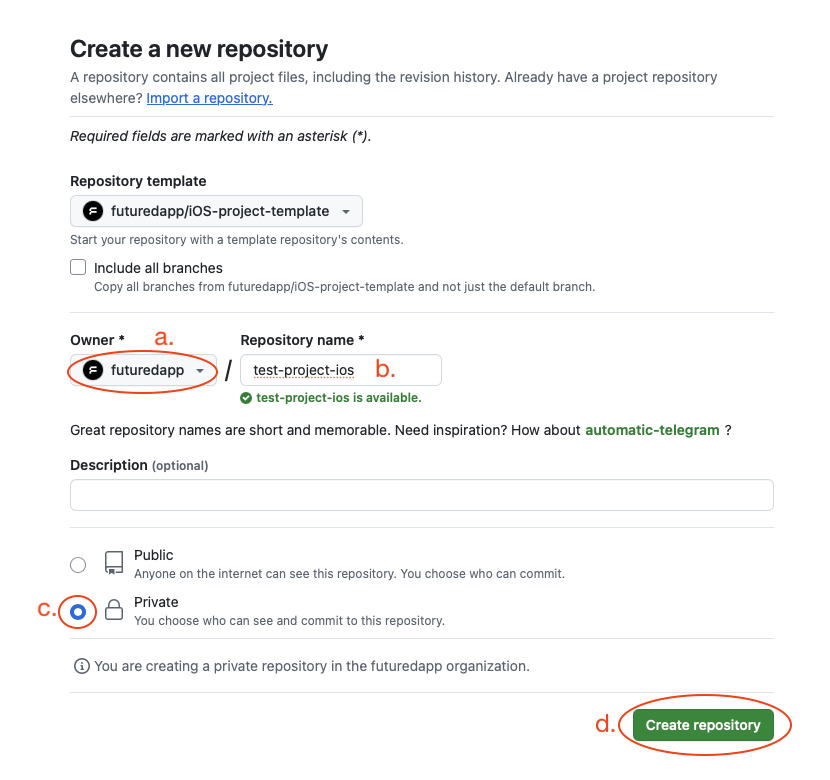
- change owner to
futuredapp - preffered repo name is [product-name]-[platform], where [product-name] includes only name of the product, without client name (like Skoda))
- change repo visibility to
private - click
Create repositorybutton
- change owner to
-
you will be redirected to the new repo in couple of seconds
-
in newly created repo:
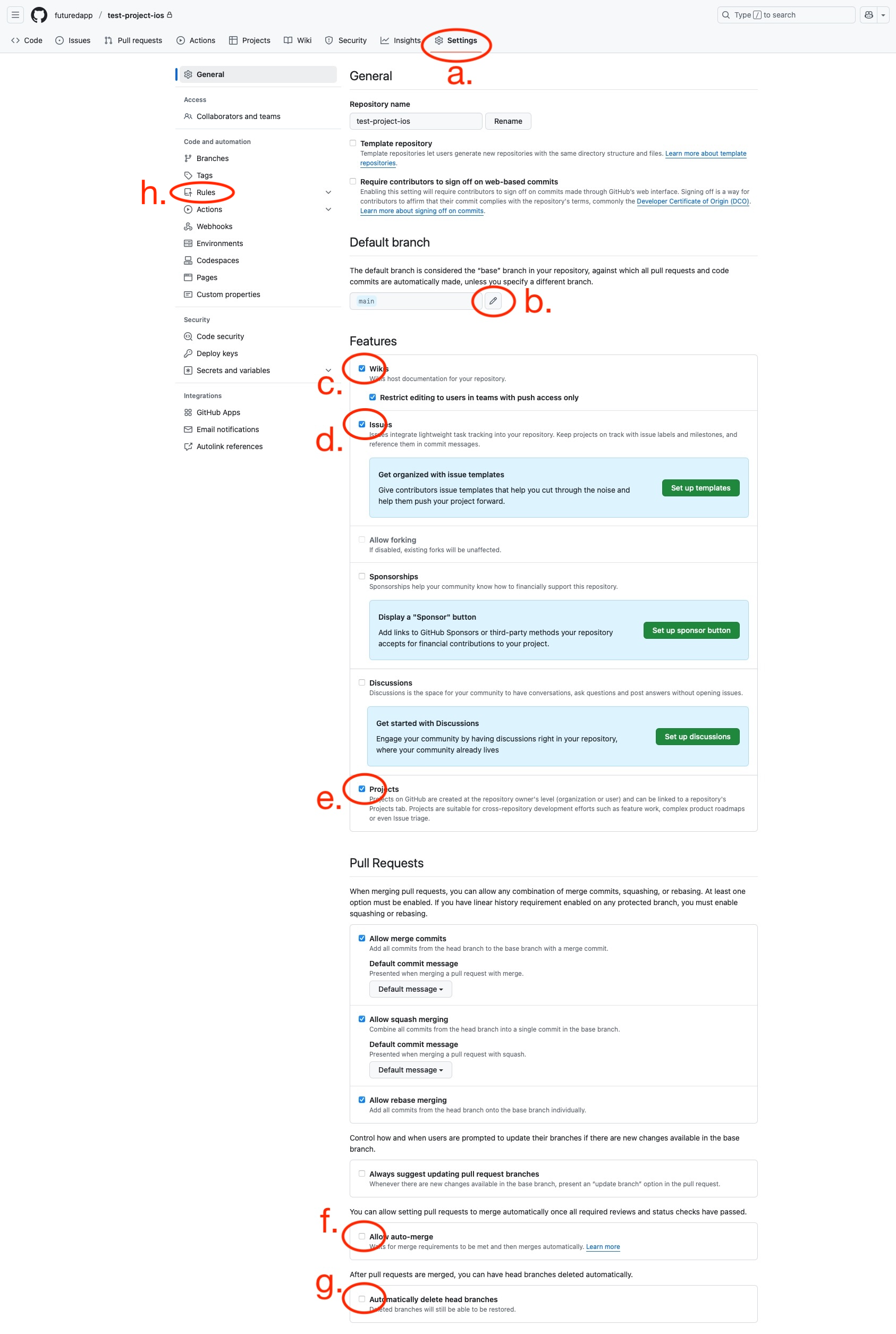
- click
Settingsbutton -
edit default branch name -> rename it to
develop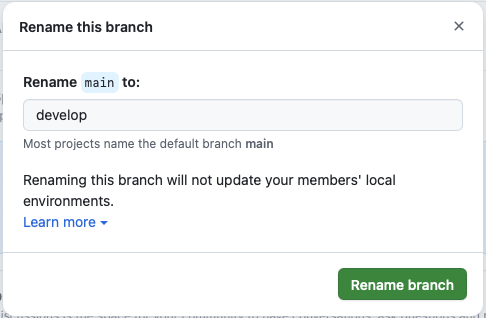
-
disable
Wikis(we do not use it) - disable
Issues(we do not use it) - disable
Projects(we do not use it) - enable
Allow auto-merge - enable
Automatically delete head branches(there is no need to delete branches manually after each PR merge) -
select
Rulessection- select
Rulesetssubsection - click
New rulesetbutton -
click
New branch rulesetoption from dropdown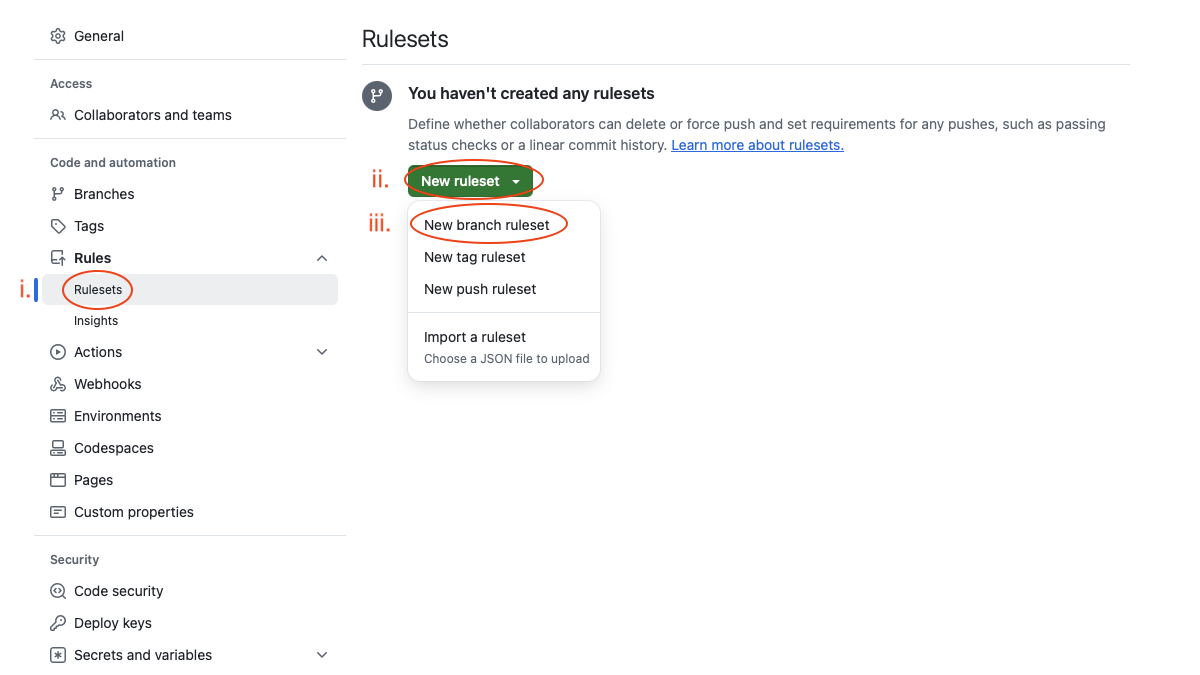
- select
-
set new branch ruleset
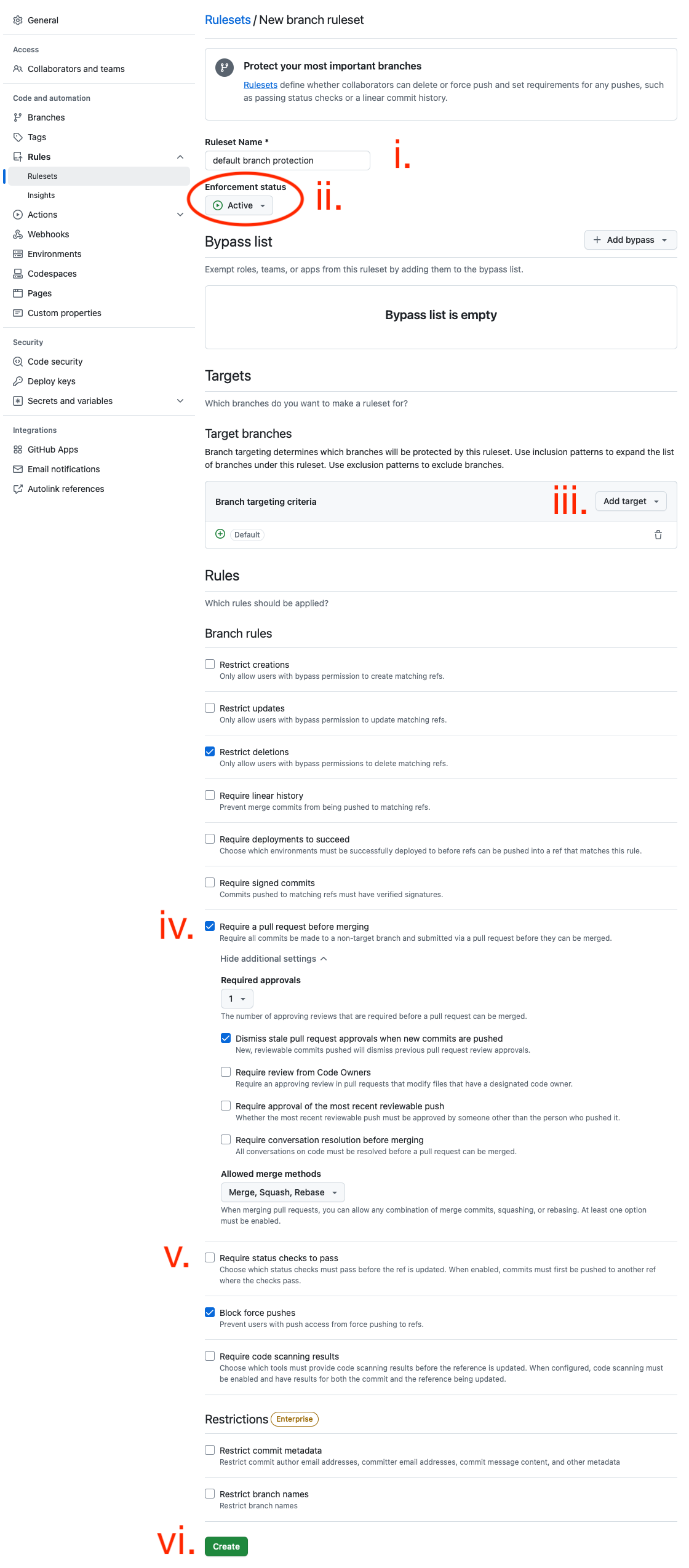
- fill
default branch protectiontoRuleset Name -
change
Enforcement statustoActive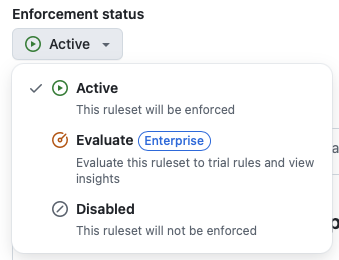
-
click
Include default branchto add default branch as target branch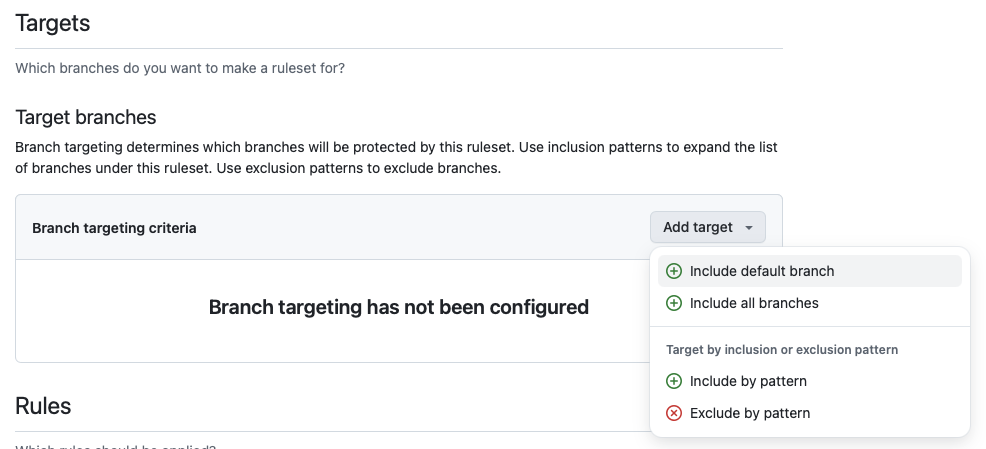

-
enable
Require a pull request before merging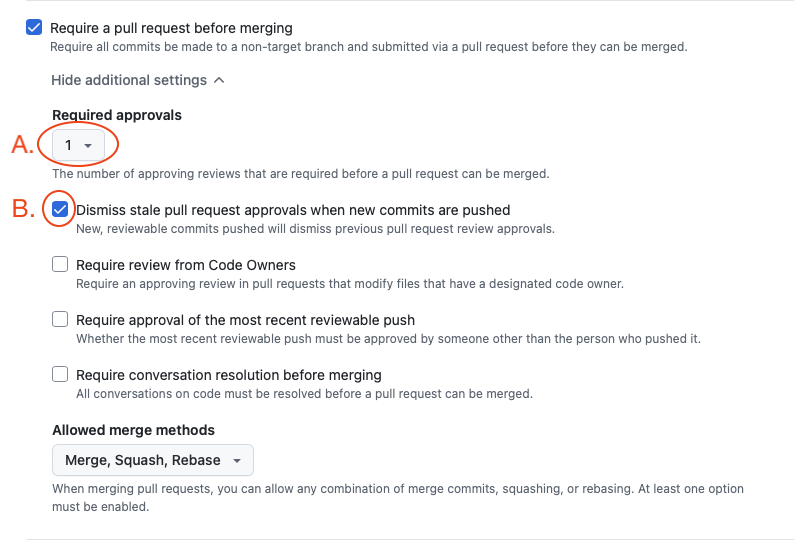
- set
Required approvalsto 1 - enable
Dismiss stale pull request approvals when new commits are pushed
- set
-
keep
Require status checks to passunchecked for the moment (we'll set it up later)- don't forget to add the
testaction rule after opening your first PR (actions will appear in the list after their first run)

- don't forget to add the
-
click
Createbutton, new ruleset appears in the list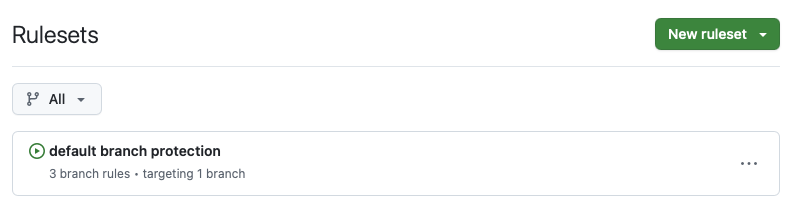
- fill
- click
-
-
Configure Ruby environment and Fastlane
Steps
- clone your project's repo
-
create a new branch
feature/PROJ-1-Setup-projectwhere everything will be set up in next steps- PROJ is your project Jira identificator
- 1 is Jira task number (if you don't have Jira yet ask your PM)
-
if you haven't setup ruby on your machine yet
- follow manual steps of this tutorial
- install bundler from Terminal with
gem install bundler
-
in project folder
- edit
fastlane/Fastfileto specify environment variables - see CI/CD manual
- edit
-
in Terminal
- switch to repo root folder
- call
bundle installto install gems
-
Create app in Apple Developer and App Store Connect portals
Steps
-
create app in Apple Developer and App Store Connect portals
App Store Connect 2FA
If you need a 2FA code for
ops@futured.appaccount when running the following Fastlane commands, please contact someone from the iOS team for assistance.App released from customer's ASC account
If you filled customer's environment variables in Fastfile
-
call
bundle exec fastlane create_apps- if it's the first app for the account append
company_name:"My Company Inc"parameter
- if it's the first app for the account append
-
call
bundle exec fastlane update_provisioning include_release:true create_branch:truecreate_branch:trueparameter is needed only for the first time to create customer branch in our Apple certificates repo
App released from Futured's ASC account
- call
bundle exec fastlane create_apps - call
bundle exec fastlane update_provisioning include_release:true
The app's release account is currently unknown
You can setup release account later
- call
bundle exec fastlane create_apps skip_release_app:true - call
bundle exec fastlane update_provisioning
Once you're familiar with the release process, rerun the above command (no need to worry about duplication)
-
-
-
Create a new Xcode project
Steps
-
install
FuturedArchitectureproject template (if you haven’t done so yet)- paste the following script to Terminal and press enter
bash << 'EOF'
#!/bin/bash

echo "Cloning repository..."
git clone --depth=1 git@github.com:futuredapp/FuturedKit.git

echo "Running make..."
(cd FuturedKit/Templates && make)

echo "Cleaning up..."
rm -rf FuturedKit

echo "Done!"
EOF
- paste the following script to Terminal and press enter
-
open Xcode (or close and open again for refresh templates) and select
File->New->Project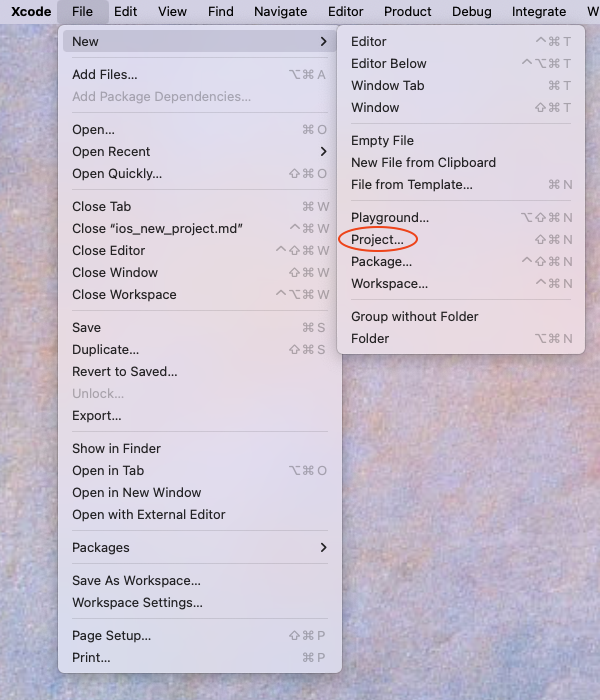
-
select
iOStab andSwiftUI AppfromFuturedArchitectureand clickNextbutton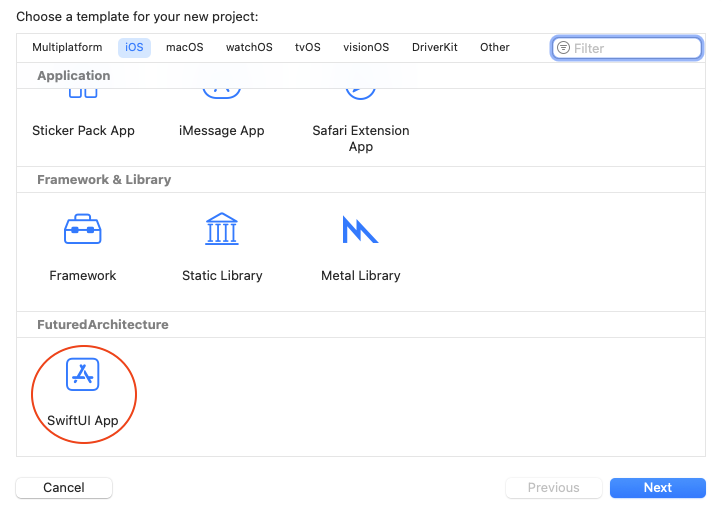
-
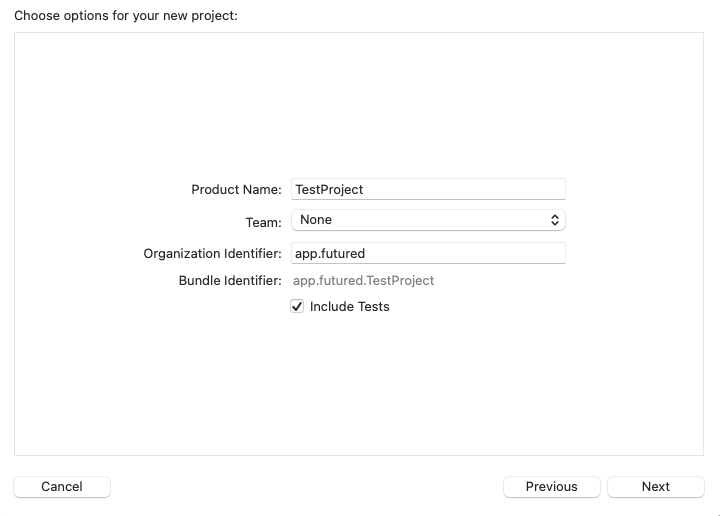
fill the project info and click
Nextbutton- write product name in CamelCased style
- organization identifier is
app.futured
-
choose your repo folder and click
Createbutton- Xcode project will open
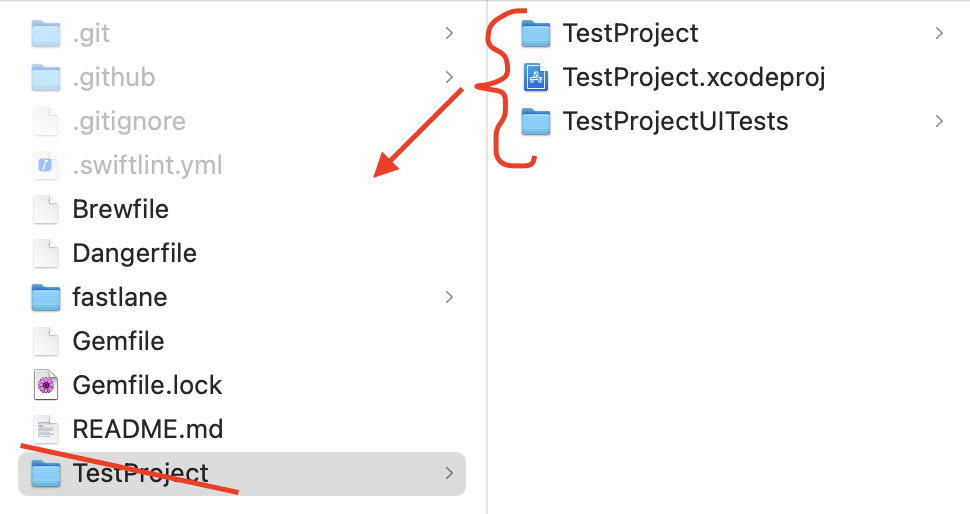
- close it and check the project's folder
- move content of
{ProjectName}folder to the repo root (you need to rename it first to be able to move the content) - delete
{ProjectName}folder - open Xcode project again
-
in Xcode:
-
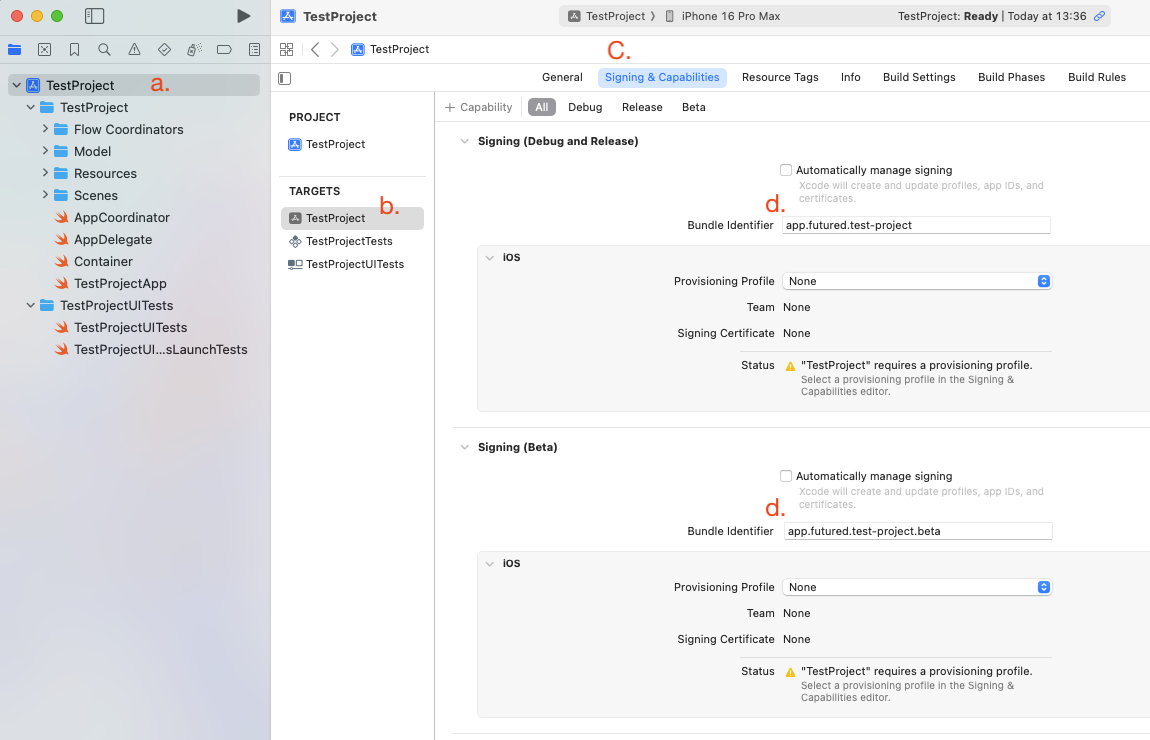
change bundle identifier to kebab-cased style
app.futured.kebab-case-app-name- select
root - select main project target
- select
Signing & Capabilitiestab - change bundle id for all configurations
- select
-
setup Futured's architecture
-
add
FuturedKitpackage dependency - https://github.com/futuredapp/FuturedKit.git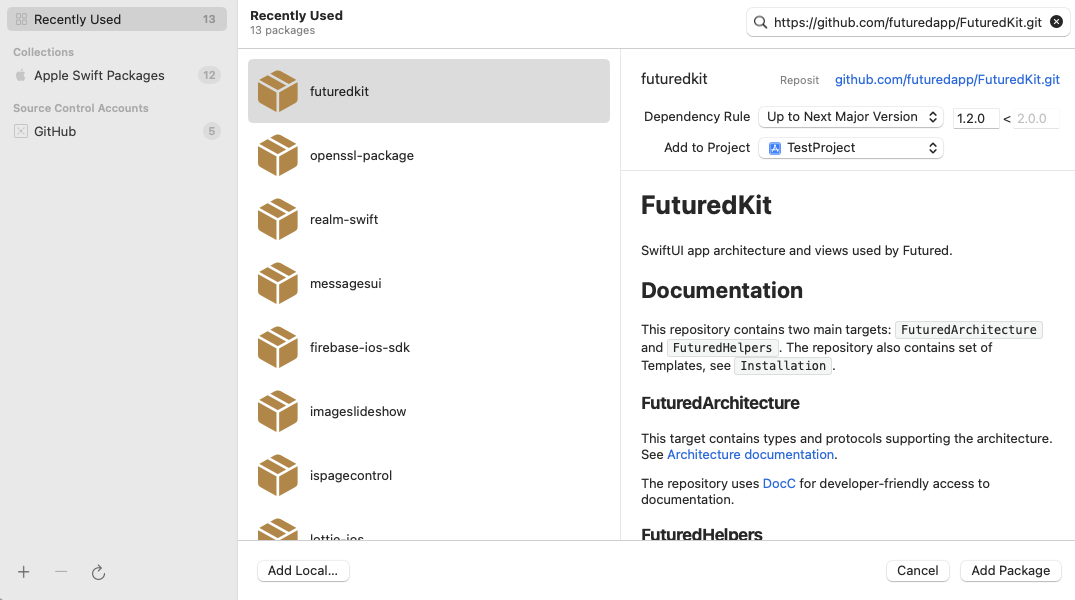
-
add
FuturedArchitectureto main project target -
optionally add
FuturedHelpersto main project target if needed - see docs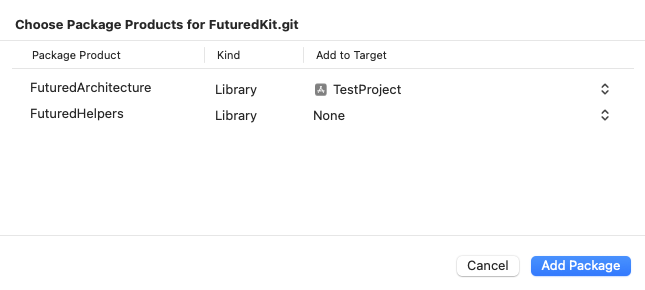
-
add
futured-macrospackage dependency - https://github.com/futuredapp/futured-macros.git and addFuturedMacrosto main project target (the template files use@EnumIdentableand@ProxyMembers) -
go to the
{project_name}App.swiftfile and remove error at line 10#error("Add https://github.com/futuredapp/FuturedKit.git to the project!")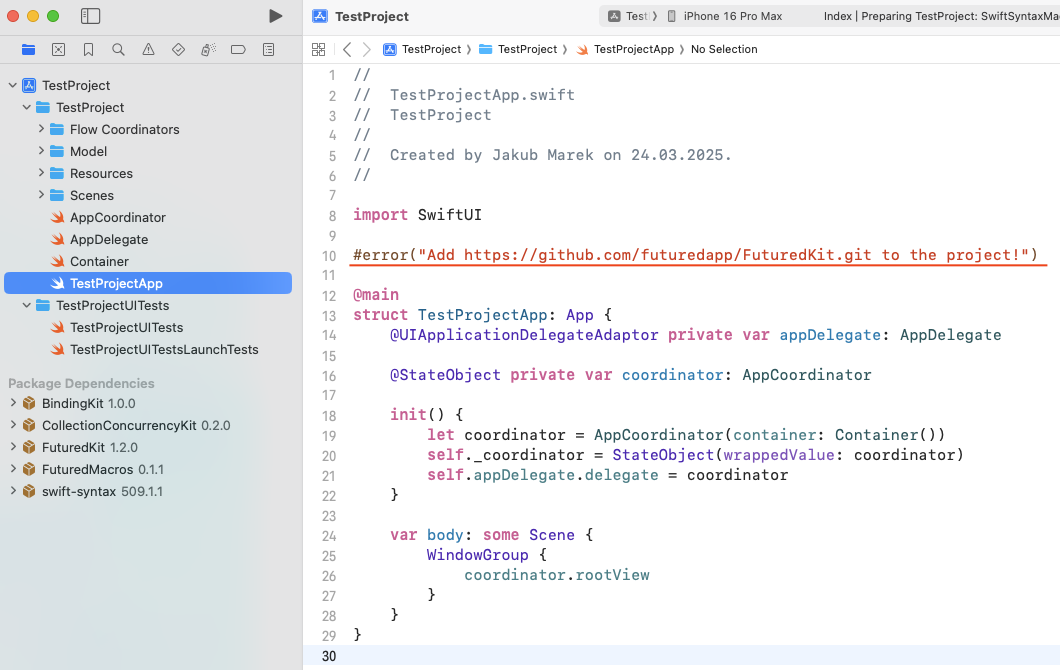
-
select
Issue navigator, click theMacro target ...warning and then clickTrust & Enablebutton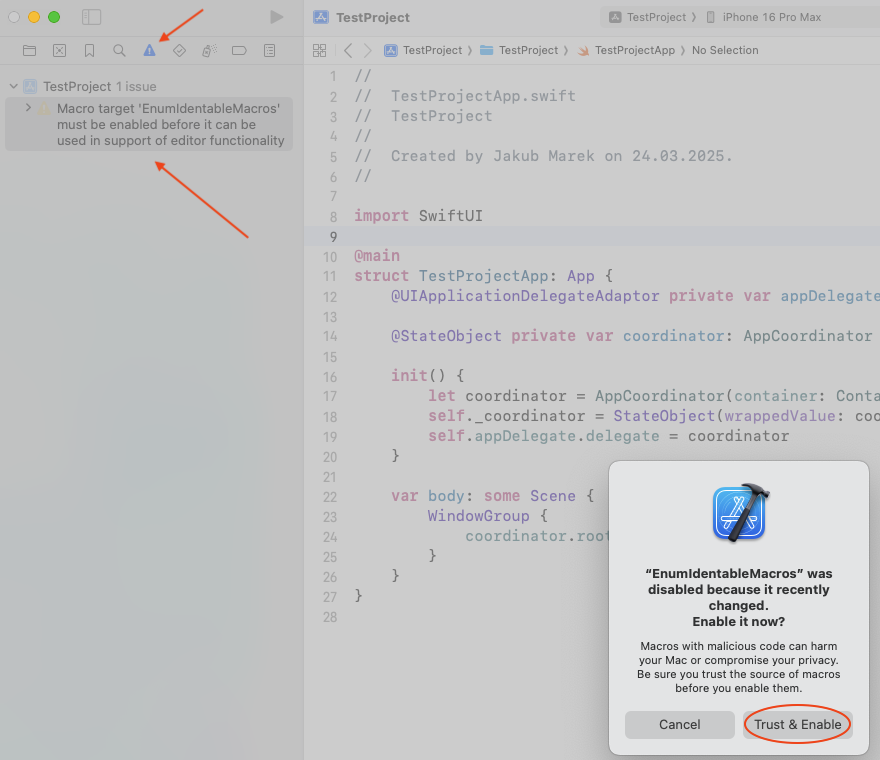
-
-
set up SwiftFormat and SwiftLint
- if you don't have them installed locally call
brew install swiftformat swiftlintfrom Terminal - the project template already contains the
.swiftformatand.swiftlint.ymlconfiguration - the Xcode template already adds the
SwiftFormatandSwiftLintrun script phases and disablesUser Script Sandboxingfor the app target, so no script needs to be pasted - go to
Build Phasestab - drag the
SwiftFormatphase and then theSwiftLintphase aboveCompile Sources, in that order (Xcode templates can only append phases, so both are appended afterCompile Sourceswhen the project is created; the#warningin{project_name}App.swiftreminds you about it and disappears once you remove it) -
the phases must be ordered
SwiftFormat->SwiftLint->Compile Sources, so files are formatted first and SwiftLint then reports what remains -
for reference, these are the scripts the template generates (the same ones used in current iOS projects); both skip Xcode preview builds
SwiftFormatphase:if [[ "${BUILD_DIR}" =~ "Previews" ]]; then echo "SwiftFormat not enabled when compiling for previews" exit fi if test -d "/opt/homebrew/bin/"; then PATH="/opt/homebrew/bin/:${PATH}" fi export PATH if which swiftformat >/dev/null; then swiftformat "$SRCROOT" else echo "warning: SwiftFormat not installed, run: brew install swiftformat" fiSwiftLintphase:if [[ "${BUILD_DIR}" =~ "Previews" ]]; then echo "SwiftLint not enabled when compiling for previews" exit fi if test -d "/opt/homebrew/bin/"; then PATH="/opt/homebrew/bin/:${PATH}" fi export PATH if which swiftlint >/dev/null; then swiftlint --fix --quiet swiftlint else echo "error: SwiftLint not installed, run: brew install swiftlint" fi - if you don't have them installed locally call
-
configure the project for Continuous Deployment
-
set proper values in
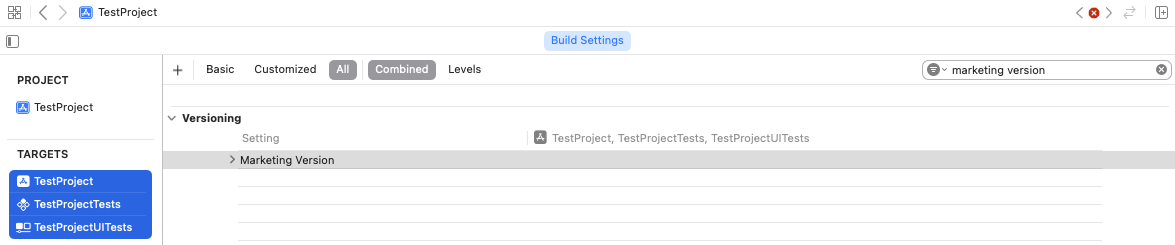
Versioningpart ofBuild Settings- select all targets and remove
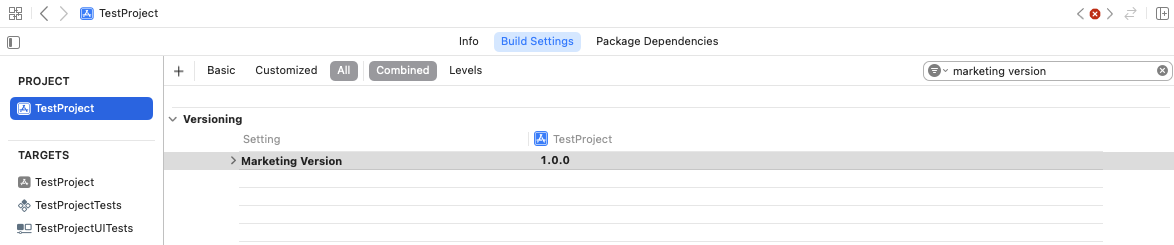
Marketing Versionvalue by pressingDeletebutton on keyboard (Marketing Versiontext will change from bold to normal) - select project and fill
1.0.0asMarketing Version
- select all targets and remove
-
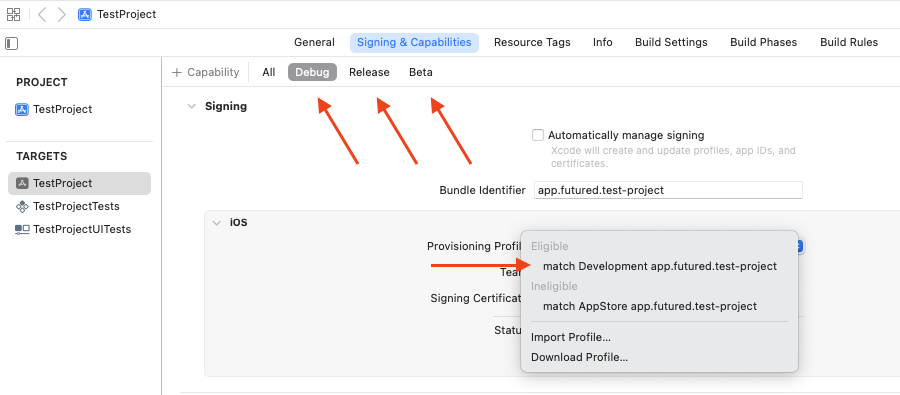
select appropriate provisioning profiles for all configurations in the Target's Signing & Capabilities tab
-
-
build the project
-
-
-
Open pull request with the project setup
Steps
-
update
.github/CODEOWNERSfile- change
@futuredapp/iosto@{github_username}of teammate/teammates (or person who will perform code reviews)
- change
-
update project README and fill in all the strike-through points
- commit everything and open PR
-
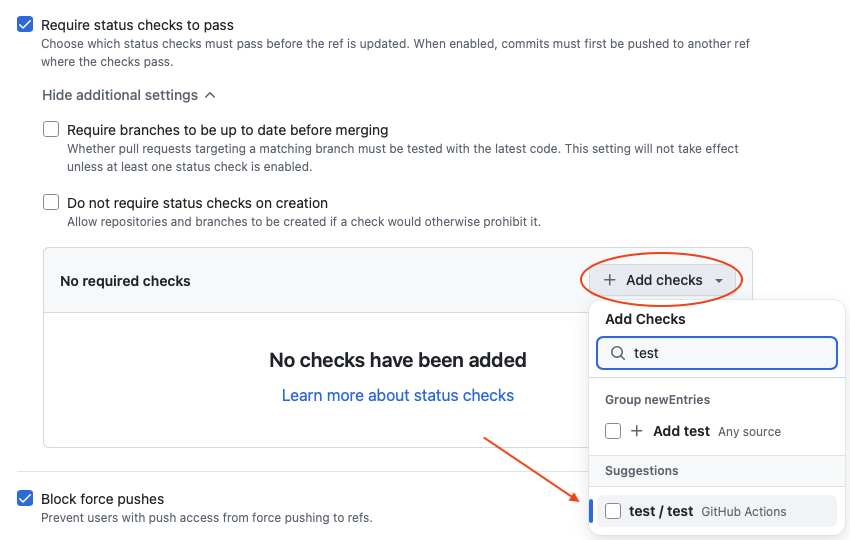
after CI checks the PR,
testcheck is now available to be added indefault branch protectionruleset- add
test/testcheck (for GitHub Actions)
- add
-
-
Enjoy!
First app run and it is not in fullscreen? 😱
You have to specify the launch screen. Check the documentation. 👀 TLDR: Add UILaunchScreen key into the project manifest file (Info tab in app's target -> Info.plist)
Tip
Check the Accessibility Basics to conform new project to EAA